defmodule LiveSelect do
alias LiveSelect.ChangeMsg
import Phoenix.Component
# for backward compatibility with LiveView 0.17
# generates compile warning if run with LiveView 0.18
import Phoenix.LiveView.Helpers
@moduledoc ~S"""
The `LiveSelect` component is rendered by calling the `live_select/3` function and passing it a form and the name of the field.
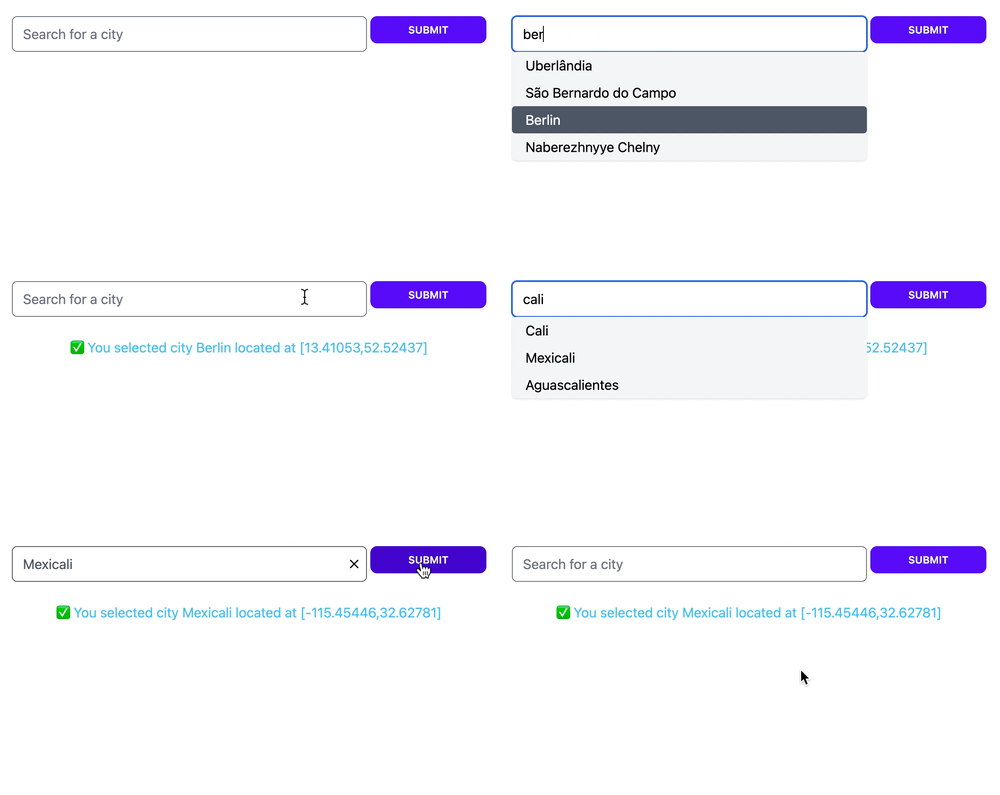
LiveSelect creates a text input field in which the user can type text, and hidden input field(s) that will contain the value of the selected option(s).
As the input text changes, LiveSelect will render a dropdown below the text input containing the matching options, which the user can then select.
Selection can happen either using the keyboard, by navigating the options with the arrow keys and then pressing enter, or by
clicking an option with the mouse.
Whenever an option is selected, `LiveSelect` will trigger a standard `phx-change` event in the form. See the "Examples" section
below for details on how to handle the event.
In single mode, if the configuration option `allow_clear` is set, the user can manually clear the selection by clicking on the `x` button on the input field.
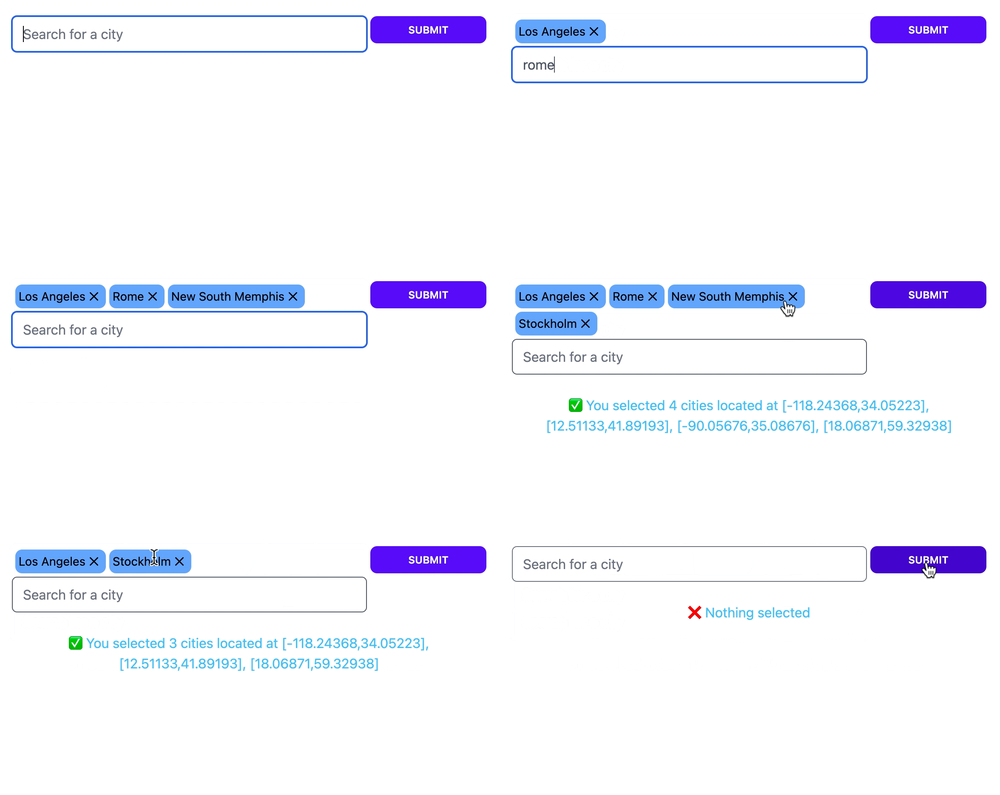
In tags mode, single tags can be removed by clicking on them.
## Single mode
## Tags mode
## Options
You can pass or update the list of options the user can choose from with the `options` assign.
Each option will be assigned a label, which will be shown in the dropdown, and a value, which will be the value of the
LiveSelect input when the option is selected.
`options` can be any enumeration of the following elements:
* _atoms, strings or numbers_: In this case, each element will be both label and value for the option
* _tuples_: `{label, value}` corresponding to label and value for the option
* _maps_: `%{label: label, value: value}` or `%{value: value}`
* _keywords_: `[label: label, value: value]` or `[value: value]`
In the case of maps and keywords, if only `value` is specified, it will be used as both value and label for the option.
Because you can pass a list of tuples, you can use maps and keyword lists to pass the list of options, for example:
```
%{Red: 1, Yellow: 2, Green: 3}
```
Will result in 3 options with labels `:Red`, `:Yellow`, `:Green` and values 1, 2, and 3.
Note that the option values, if they are not strings, will be JSON-encoded. Your LiveView will receive this JSON-encoded version in the `phx-change` and `phx-submit` events.
## Alternative tag labels
Sometimes, in `:tags` mode, you might want to use alternative labels for the tags. For example, you might want the labels in the tags to be shorter
in order to save space. You can do this by specifying an additional `tag_label` key when passing options as map or keywords. For example, passing these options:
```
[%{label: "New York", tag_label: "NY"}, %{label: "Barcelona", tag_label: "BCN"}]
```
will result in "New York" and "Barcelona" being used for the options in the dropdown, while "NY" and "BCN" will be used for the tags.
## Reacting to user's input
Whenever the user types something in the text input, LiveSelect sends a `t:LiveSelect.ChangeMsg.t/0` message to your LiveView.
The message has a `text` property containing the current text entered by the user, as well as `id` and `field` properties with the id of the
LiveSelect component and the name of the LiveSelect form field, respectively.
The LiveView's job is to [`handle_info/2`](`c:Phoenix.LiveView.handle_info/2`) the message and then call `LiveView.send_update/3`
to update the list of selectable options. See the "Examples" section below for details.
## Multiple selection with tags mode
When `:tags` mode is enabled `LiveSelect` allows the user to select multiple entries. The entries will be visible above the text input field as removable tags.
The selected entries will be passed to your live view's `change` and `submit` event handlers as a list of entries, just like an [HTML
 ## Tags mode
 ## Options
You can pass or update the list of options the user can choose from with the `options` assign.
Each option will be assigned a label, which will be shown in the dropdown, and a value, which will be the value of the
LiveSelect input when the option is selected.
`options` can be any enumeration of the following elements:
* _atoms, strings or numbers_: In this case, each element will be both label and value for the option
* _tuples_: `{label, value}` corresponding to label and value for the option
* _maps_: `%{label: label, value: value}` or `%{value: value}`
* _keywords_: `[label: label, value: value]` or `[value: value]`
In the case of maps and keywords, if only `value` is specified, it will be used as both value and label for the option.
Because you can pass a list of tuples, you can use maps and keyword lists to pass the list of options, for example:
```
%{Red: 1, Yellow: 2, Green: 3}
```
Will result in 3 options with labels `:Red`, `:Yellow`, `:Green` and values 1, 2, and 3.
Note that the option values, if they are not strings, will be JSON-encoded. Your LiveView will receive this JSON-encoded version in the `phx-change` and `phx-submit` events.
## Alternative tag labels
Sometimes, in `:tags` mode, you might want to use alternative labels for the tags. For example, you might want the labels in the tags to be shorter
in order to save space. You can do this by specifying an additional `tag_label` key when passing options as map or keywords. For example, passing these options:
```
[%{label: "New York", tag_label: "NY"}, %{label: "Barcelona", tag_label: "BCN"}]
```
will result in "New York" and "Barcelona" being used for the options in the dropdown, while "NY" and "BCN" will be used for the tags.
## Reacting to user's input
Whenever the user types something in the text input, LiveSelect sends a `t:LiveSelect.ChangeMsg.t/0` message to your LiveView.
The message has a `text` property containing the current text entered by the user, as well as `id` and `field` properties with the id of the
LiveSelect component and the name of the LiveSelect form field, respectively.
The LiveView's job is to [`handle_info/2`](`c:Phoenix.LiveView.handle_info/2`) the message and then call `LiveView.send_update/3`
to update the list of selectable options. See the "Examples" section below for details.
## Multiple selection with tags mode
When `:tags` mode is enabled `LiveSelect` allows the user to select multiple entries. The entries will be visible above the text input field as removable tags.
The selected entries will be passed to your live view's `change` and `submit` event handlers as a list of entries, just like an [HTML
## Options
You can pass or update the list of options the user can choose from with the `options` assign.
Each option will be assigned a label, which will be shown in the dropdown, and a value, which will be the value of the
LiveSelect input when the option is selected.
`options` can be any enumeration of the following elements:
* _atoms, strings or numbers_: In this case, each element will be both label and value for the option
* _tuples_: `{label, value}` corresponding to label and value for the option
* _maps_: `%{label: label, value: value}` or `%{value: value}`
* _keywords_: `[label: label, value: value]` or `[value: value]`
In the case of maps and keywords, if only `value` is specified, it will be used as both value and label for the option.
Because you can pass a list of tuples, you can use maps and keyword lists to pass the list of options, for example:
```
%{Red: 1, Yellow: 2, Green: 3}
```
Will result in 3 options with labels `:Red`, `:Yellow`, `:Green` and values 1, 2, and 3.
Note that the option values, if they are not strings, will be JSON-encoded. Your LiveView will receive this JSON-encoded version in the `phx-change` and `phx-submit` events.
## Alternative tag labels
Sometimes, in `:tags` mode, you might want to use alternative labels for the tags. For example, you might want the labels in the tags to be shorter
in order to save space. You can do this by specifying an additional `tag_label` key when passing options as map or keywords. For example, passing these options:
```
[%{label: "New York", tag_label: "NY"}, %{label: "Barcelona", tag_label: "BCN"}]
```
will result in "New York" and "Barcelona" being used for the options in the dropdown, while "NY" and "BCN" will be used for the tags.
## Reacting to user's input
Whenever the user types something in the text input, LiveSelect sends a `t:LiveSelect.ChangeMsg.t/0` message to your LiveView.
The message has a `text` property containing the current text entered by the user, as well as `id` and `field` properties with the id of the
LiveSelect component and the name of the LiveSelect form field, respectively.
The LiveView's job is to [`handle_info/2`](`c:Phoenix.LiveView.handle_info/2`) the message and then call `LiveView.send_update/3`
to update the list of selectable options. See the "Examples" section below for details.
## Multiple selection with tags mode
When `:tags` mode is enabled `LiveSelect` allows the user to select multiple entries. The entries will be visible above the text input field as removable tags.
The selected entries will be passed to your live view's `change` and `submit` event handlers as a list of entries, just like an [HTML